How to Connect Home Assistant to Gemini CLI using MCP
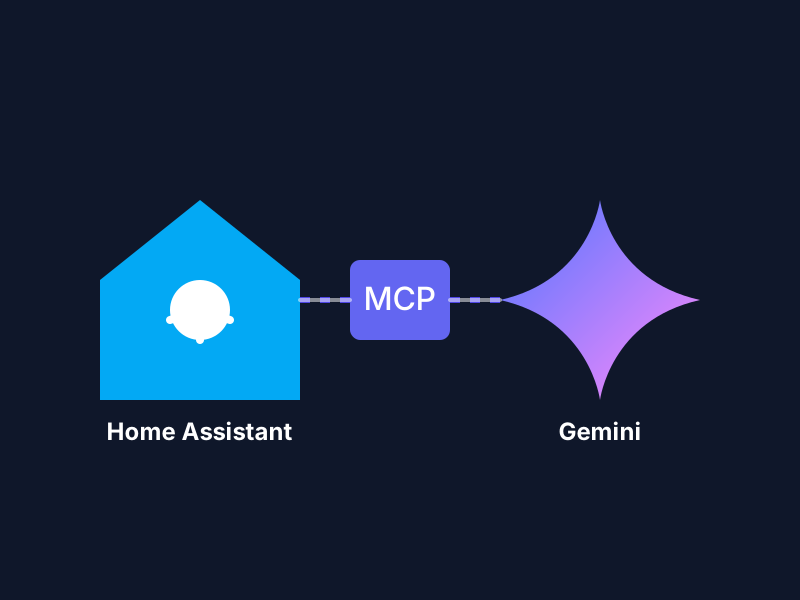
The Model Context Protocol (MCP) is a game-changer for AI agents. By setting up an MCP server for Home Assistant, you allow Gemini CLI to “see” your devices and “act” on your behalf, effectively giving your terminal the power to manage your home.
1. Install the Home Assistant MCP Server
While there is an official integration, we recommend the Community MCP Server for its extensive toolset.
Installation via Home Assistant App Store:
- Navigate to Settings > Apps > App Store.
- Click the three dots in the top right and select Repositories.
- Add
https://github.com/homeassistant-ai/ha-mcpand click Add. - Search for Home Assistant MCP Server in the list and click Install.
- Go to the Configuration tab and ensure it’s set up, then click Start.
2. Generate a Long-Lived Access Token
Gemini CLI needs a secure way to talk to your Home Assistant instance.
- In Home Assistant, click your Profile name (bottom left sidebar).
- Scroll to the very bottom to find Long-Lived Access Tokens.
- Click Create Token, name it “Gemini CLI”, and copy the token immediately. You will not be able to see it again.
3. Integrate with Gemini CLI
Now, you need to tell Gemini CLI about your new MCP server. You do this by adding it to your Gemini CLI configuration.
Update your Gemini CLI Configuration:
Open your GEMINI.md or global configuration file and add the following block:
# MCP Servers
- **Home Assistant:**
  - Command: `npx -y @homeassistant-ai/ha-mcp`
  - Environment Variables:
    - `HASS_HOST`: `http://your-home-assistant-ip:8123`
    - `HASS_TOKEN`: `your-long-lived-access-token`
Alternatively, if you are using a tool-based configuration, ensure the mcp_servers list includes the homeassistant entry with the correct environment variables.
4. Testing the Integration
Restart your Gemini CLI session and try asking a question about your home:
“Hey Gemini, what is the current temperature in the living room?” “Turn off all the lights in the kitchen.”
Gemini CLI will now use the MCP server to fetch the status of your entities and execute the requested services!
Security Reminder
By integrating your home with an LLM, you are giving an AI the ability to control physical devices. It is highly recommended to exclude sensitive entities (like locks or security systems) from being exposed to the MCP server within the Home Assistant configuration.