How to Install ESPHome and Flash Your First ESP32
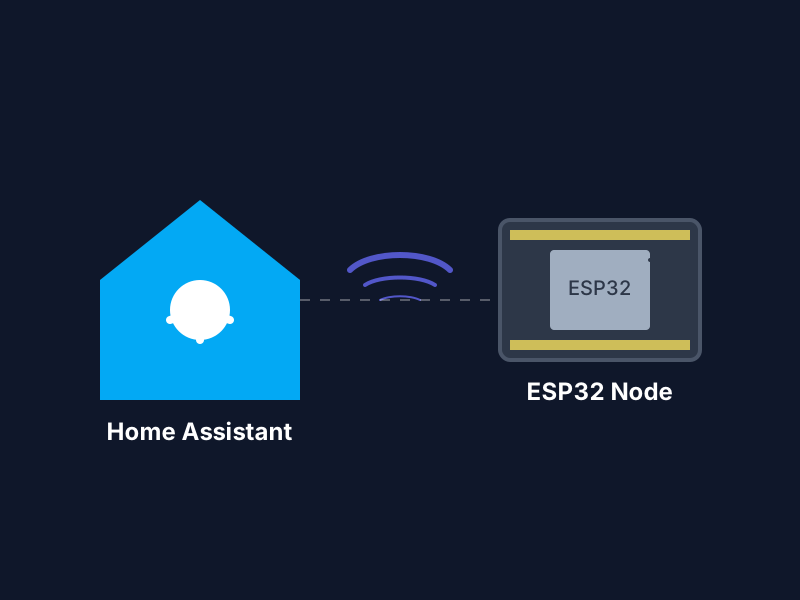
ESPHome is a system that allows you to create custom firmware for ESP32 and ESP8266 boards without writing a single line of C++ code. You simply define your hardware in a YAML configuration file, and ESPHome handles the compilation and flashing.
1. Install ESPHome Builder
There are several ways to run the ESPHome builder, but the two most common are through Home Assistant or as a standalone command-line tool.
Option A: Home Assistant App (Recommended)
If you are running Home Assistant OS:
- Navigate to Settings > Apps > App Store.
- Search for ESPHome.
- Click Install, then Start.
- Open the Web UI.
Option B: Standalone Python (Command Line)
If you prefer the terminal:
pip install esphomeVerify the installation by running esphome version.
2. Create Your First Node
- In the ESPHome dashboard, click + New Device.
- Give your node a name (e.g., “Living Room Sensor”).
- Select ESP32 as your platform.
- Enter your Wi-Fi credentials so the device can connect to your network.
3. Configure the YAML
ESPHome will generate a basic YAML file. You can add components like sensors, lights, or switches. For example, to add a simple status LED:
status_led:
  pin: GPIO2
4. Flashing the ESP32
Now it’s time to get the code onto the physical hardware.
First-Time Flash (USB)
- Connect your ESP32 to your computer (or NUC) via USB.
- In the ESPHome dashboard, click Install.
- Select Plug into this computer (using the ESPHome Web tool) or Plug into the server.
- ESPHome will compile the firmware and stream it to the device.
Over-the-Air (OTA) Updates
Once the first flash is done, you never need to plug it in again! Future updates can be sent wirelessly over Wi-Fi by selecting Wirelessly when you click Install.
5. Integration with Home Assistant
As soon as the device boots up and connects to Wi-Fi, Home Assistant will automatically discover it via the ESPHome Integration. You’ll get a notification to “Configure” the new device—just click it, and your ESP32 entities will appear instantly in your dashboard.
Happy building!