How to Integrate AquaLinkD into Home Assistant using MQTT
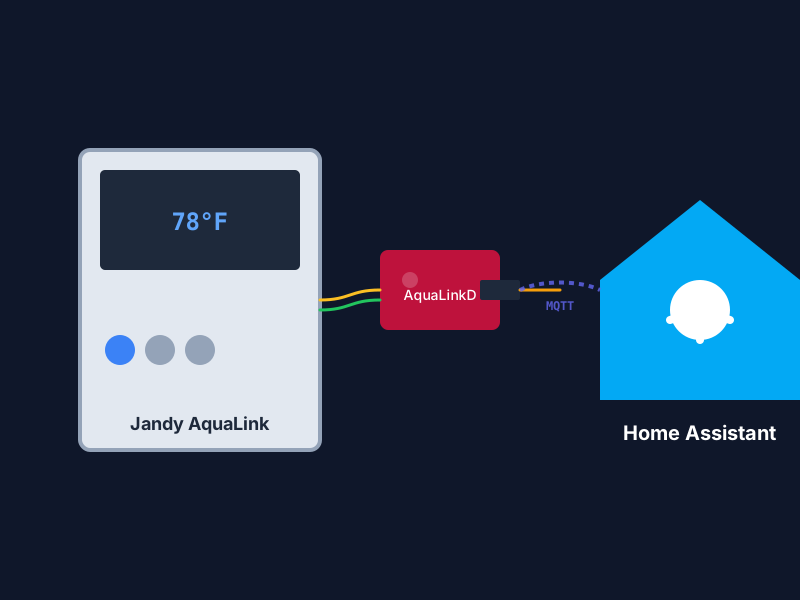
If you have a Jandy/Zodiac pool controller (like the AquaLink RS), you know that official smart integrations can be limited. AquaLinkD is an amazing community project that emulates a Jandy control panel, allowing you to bridge your pool equipment directly into Home Assistant via MQTT with 100% local control.
1. Hardware Requirements
To talk to your pool controller, you need a way to interface with the RS485 data bus:
- A Computer: A Raspberry Pi (Zero W, 3, 4, or 5) is the most common choice.
- USB to RS485 Adapter: Essential for connecting the Pi to the pool board.
- Wiring: You will need to tap into the 4-pin red connector on your Jandy board (Pins: Red=+10V, Black=GND, Yellow=Data+, Green=Data-).
- Note: Only connect Yellow and Green if your Pi has its own power supply.
2. Installing AquaLinkD
The fastest way to install AquaLinkD on a clean Raspberry Pi OS is the official one-liner:
curl -fsSL https://install.aqualinkd.com | sudo bash -s -- latest3. MQTT Configuration
Once installed, you need to configure AquaLinkD to talk to your Home Assistant’s MQTT broker. Edit /etc/aqualinkd.conf:
# MQTT Broker Address
mqtt_address = 192.168.1.XXX:1883
mqtt_user = your_user
mqtt_passwd = your_password

# Enable Home Assistant Discovery
mqtt_hass_discovery = yes
4. Device Mapping (The “Button” Config)
One of the most important steps is mapping the AquaLinkD buttons to your actual physical equipment. As discussed in the AquaLinkD community, you need to ensure your aqualinkd.conf matches your controller’s configuration:
# Example mapping
button_01 = Pool Pump
button_02 = Spa
button_03 = Cleaner
button_04 = Air Blower
5. Home Assistant Integration
Because we enabled mqtt_hass_discovery, Home Assistant will automatically find your pool equipment!
- Go to Settings > Devices & Services.
- Click on the MQTT integration.
- You should see a new device called AquaLinkD with entities for all your pumps, heaters, and temperature sensors.
Pro Tip: Custom Dashboards
For a truly modern pool control experience, use the AquaLinkD Web UI or create a custom dashboard in Home Assistant using the Picture Elements card to show a top-down view of your pool with interactive toggle icons.
Now you can automate your pool heater based on the weather or turn on the spa from your phone as you drive home!